연락처
텍트로닉스 담당자와 실시간 상담 6:00am-4:30pm PST에 이용 가능
전화 문의
9:00am-6:00PM KST에 이용 가능
다운로드
매뉴얼, 데이터 시트, 소프트웨어 등을 다운로드할 수 있습니다.
피드백
SignalVu Essentials Technical Reference
This document provides an overview of the SignalVu Vector Signal Analysis Software.
이 매뉴얼은 다음에 적용됩니다.:
DPO7054C, DPO7104C, DPO7254C, DPO7354C, DPO70404C, DPO70604C, DPO70804C, DPO71254C, DPO71604C, DPO72004C, MSO72004C, MSO71604C, MSO71254C, MSO70804C, MSO70604C, MSO70404C, MSO5204, MSO5104, MSO5054, MSO5034, DPO5054, MSO72304DX, MSO72504DX, MSO73304DX, DPO72304DX, DPO72504DX, DPO73304DX, DPO72304SX, DPO73304SX, DPO71604SX, DPO71304SX
관련 제품 정보
다운로드하면 매뉴얼 다운로드 계약 약관에 동의하게 됩니다.
설명서 다운로드 계약
참고: 이 웹 사이트에서 문서를 다운로드하기 전에 아래 약관을 주의 깊게 읽어보십시오. 텍트로닉스 웹 사이트에서 설명서를 다운로드하면 아래 약관에 동의한 것으로 간주됩니다.
현재 지원되는 제품의 설명서:
Tektronix 장비 소유자에게는 내부 또는 개인용으로 이 웹 사이트에서 설명서를 다운로드하고 복제할 수 있는 권한 및 사용권이 부여됩니다. 현재 지원되는 제품의 설명서는 Tektronix, Inc.에서 별도로 서면으로 승인하지 않는 한 다른 사람에게 배포하기 위해 복제될 수 없습니다.
Tektronix 설명서는 제조 기간 동안 제품의 변경 내용을 반영하도록 개정될 수 있습니다. 따라서 특정 제품에 대해 서로 다른 설명서 버전이 존재할 수 있습니다. 특정 제품 시리얼 넘버에 대해 올바른 설명서 버전을 가져오도록 주의를 기울여야 합니다.
더 이상 지원되지 않는 제품의 설명서:
Tektronix는 장기간 지원에 더 이상 적합하지 않은 측정 제품용 설명서를 제공할 수 없습니다. Tektronix는 Tektronix에서 더 이상 지원하지 않는 (a) Tektronix 부품 번호 (b) 측정 제품용 사용 설명서, 작업자 설명서, 서비스 설명서 등을 비롯한 Tektronix 측정 제품 설명서 복사본을 복제하고 배포할 수 있는 권한 및 사용권을 제공합니다.
Tektronix 설명서는 제조 기간 동안 제품의 변경 내용을 반영하도록 개정될 수 있습니다. 따라서 특정 제품에 대해 서로 다른 설명서 버전이 존재할 수 있습니다. 특정 제품 시리얼 넘버에 대해 올바른 설명서 버전을 가져오도록 주의를 기울여야 합니다.
이 권한 및 사용권은 Tektronix에서 계속해서 제공되는 모든 설명서나 기타 출판물 또는 비디오 프러덕션 제품이나 컬러 프린터 제품용 설명서나 기타 출판물에는 적용되지 않습니다.
부인:
Tektronix는 Tektronix에서 제공하지 않거나 위에서 언급된 권한 및 사용권에 따라 작성 또는 배포된 모든 측정 제품 설명서나 기타 출판물에 포함된 정보, 텍스트, 그래픽, 도식, 부품 목록 또는 기타 자료의 정확성 또는 완전성을 보장하지 않습니다.
Tektronix는 언제든지 예고 없이 이 웹 사이트나 제품의 콘텐츠를 변경할 수 있습니다.
책임의 제한:
TEKTRONIX는 위에서 언급된 권한 및 사용권에 따라 작성 또는 배포된 기타 출판물이나 모든 측정 제품 설명서 사용으로 인한 손해(결과적, 우박적 손해, 이익 손실, 업무 중단, 지적 재산권 침해)에 대해 책임을 지지 않습니다.
Read Online
Getting started with SignalVu
The SignalVu Vector Signal Analysis software transforms a digital oscilloscope into an analysis tool for measuring and analyzing RF signal behavior. The software is based on that used in the RSA5000 Series Real-Time Analyzers.
 | Note:For complete operating instructions, refer to the SignalVu Help, accessible in the SignalVu application. |
The following figure shows the spectrum display: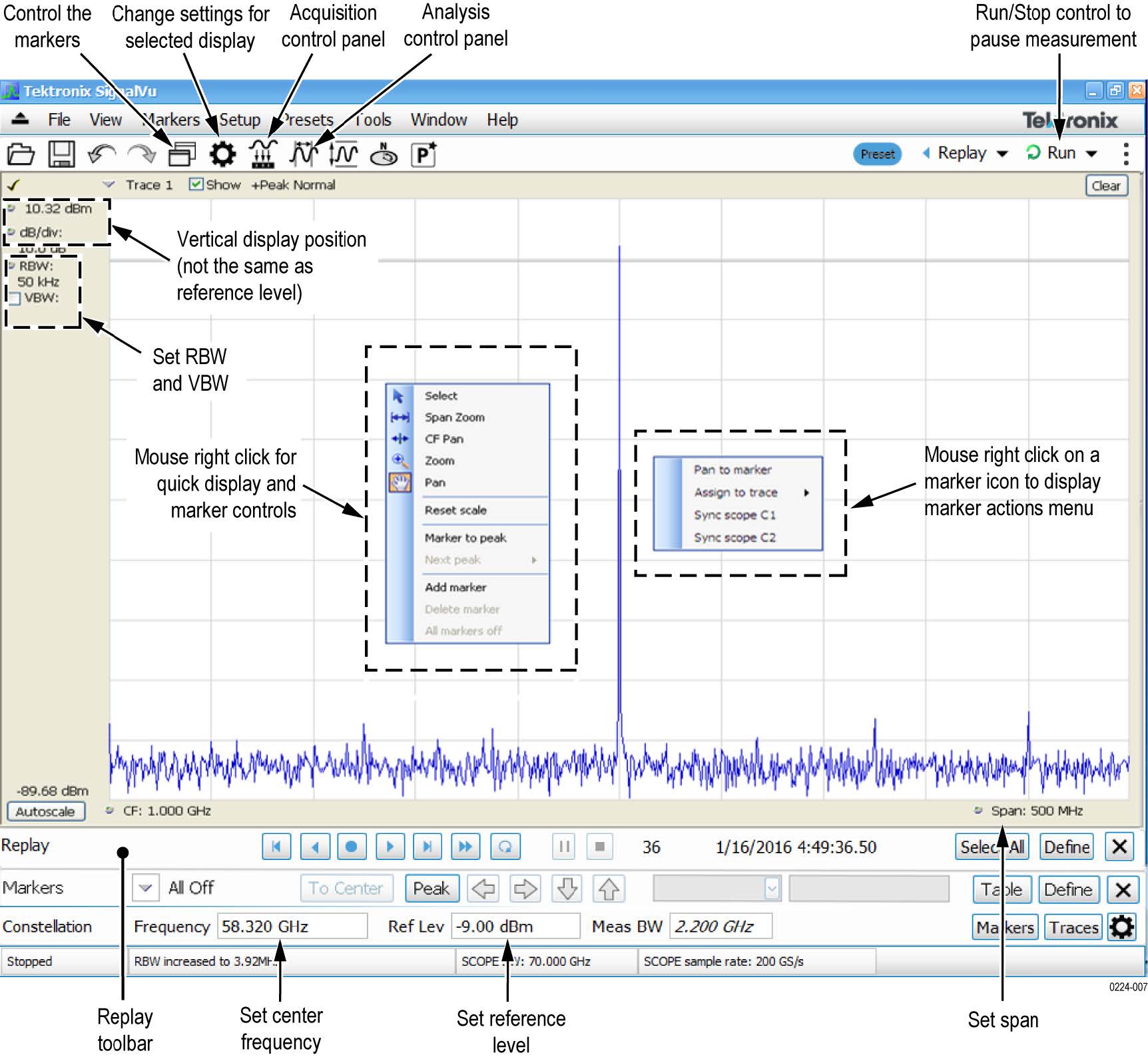
The following figure shows the spectrogram, time overview, and spectrum displays: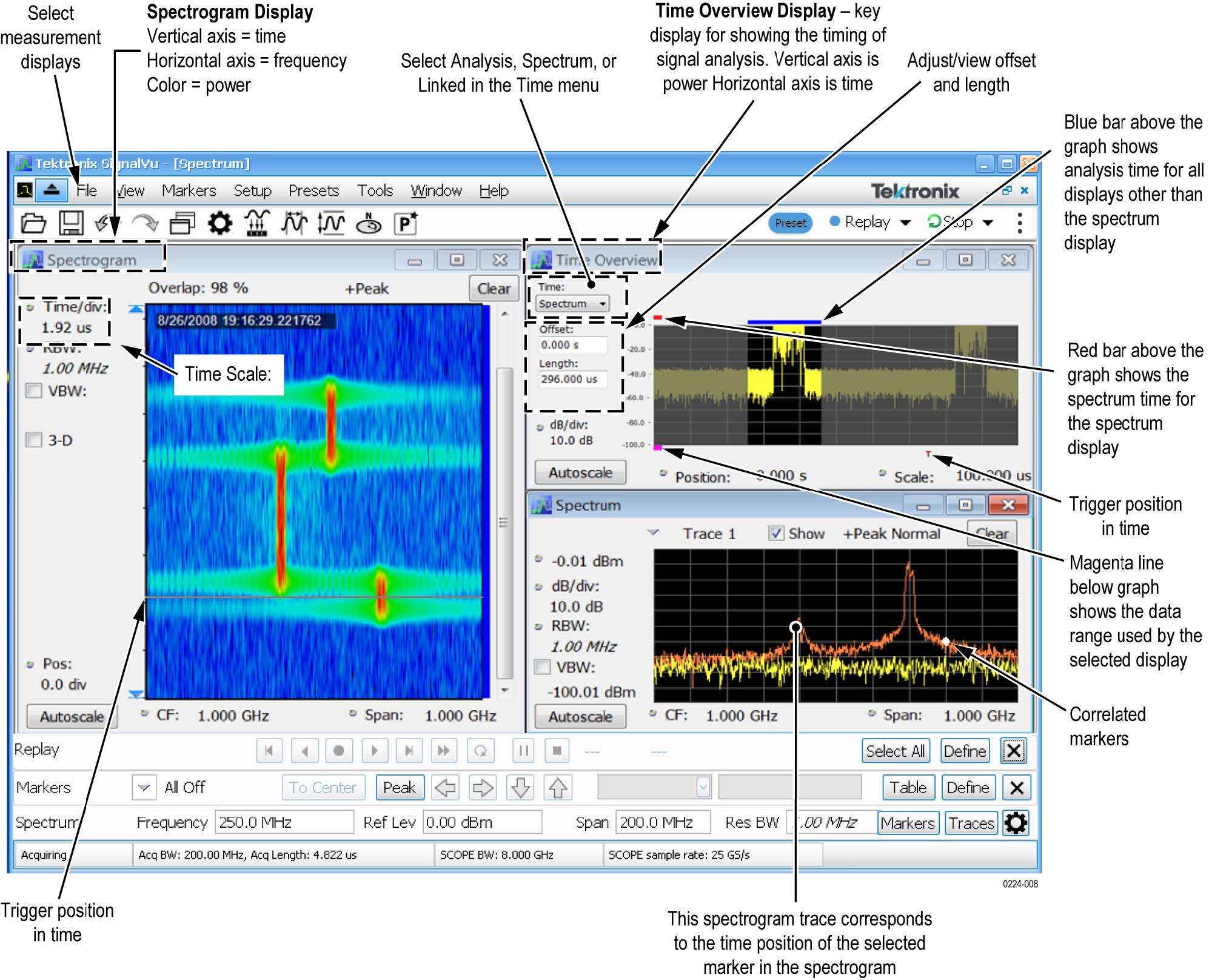
SignalVu ordering information
This software runs on DPO/MSO5000, DPO7000C, DPO/DSA/MSO70000C, and DPO/MSO70000DX Series oscilloscopes.
- Option SVE: SignalVu Essentials – Vector signal analysis software
- Option SVP: SignalVu Advanced Signal Analysis – Advanced signal analysis software (including pulse measurements); Requires Option SVE
- Option SVM: SignalVu General Purpose Modulation Analysis; Requires Option SVE
- Option SVT: SignalVu Settling Time (Phase and Frequency) Analysis; Requires Option SVE
- Option SVO: SignalVu Flexible OFDM Analysis; Requires Option SVE
- Option SVA: SignalVu Audio Analysis; Requires Option SVE
- Option SV23: SignalVu WLAN 802.11a/b/g/j/p Measurements; Requires Option SVE
- Option SV24: SignalVu WLAN 802.11n Measurements; Requires Option SVE
- Option SV25: SignalVu WLAN 802.11ac Measurements; Requires Option SVE
- Option SV26: SignalVu APCO P25 Analysis; Requires Option SVE
- Option SV27: SignalVu Bluetooth® LE and Bluetooth® Basic Rate RF Measurements; Requires Option SVE1
- Option SV28: SignalVu LTE™ Downlink (Base Station) RF Analysis Measurements (includes Cell ID)2
- Option SV30: SignalVu 802.11ad/11ay Analysis; Requires Option SVE
- Option 5GNR: 5G NR Uplink/Downlink RF Power, Bandwidth, Demodulation, and Error Vector Magnitude measurements
How to manage the 5GNR analysis license
After installing the SignalVu 5GNR Analysis plugin, it needs to be activated on that instrument/PC/laptop. The activation requires an activation code which is 20 digit alphanumeric characters separated by a hyphen between every four characters. The following topics give procedure to activate or deactivate the 5GNR Analysis.
5GNR Analysis activation
- Start the SignalVu application.
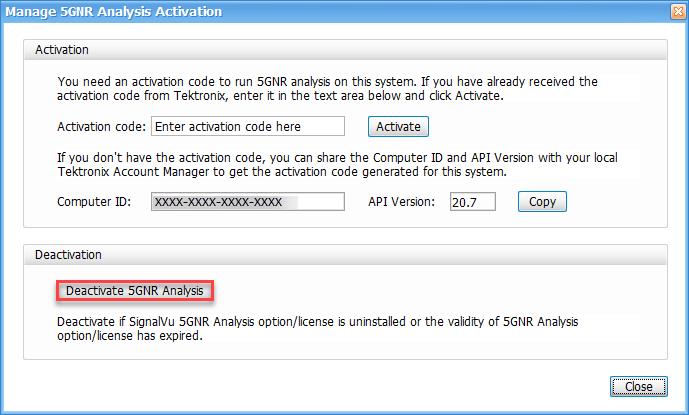
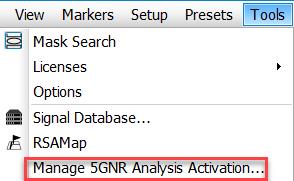
- On the Tools menu, click Manage 5GNR Analysis Activation…. The Manage 5GNR Analysis Activation dialog box appears.

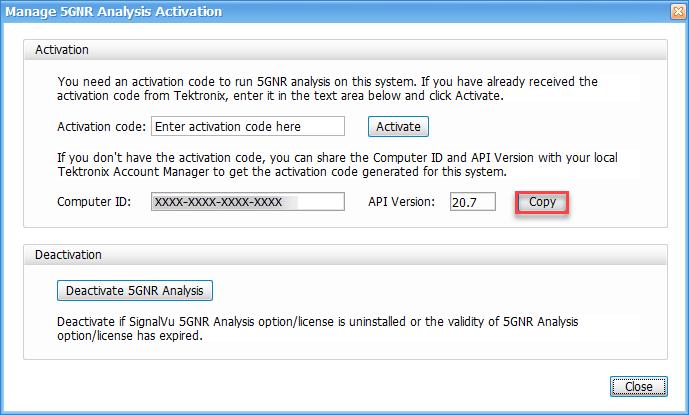
- If you do not have the activation code, under Activation, click Copy, and then close the Manage 5GNR Analysis Activation dialog box.Note:Share the Computer ID and API Version that you have copied with your local Tektronix account manager to get the activation code generated for this system.
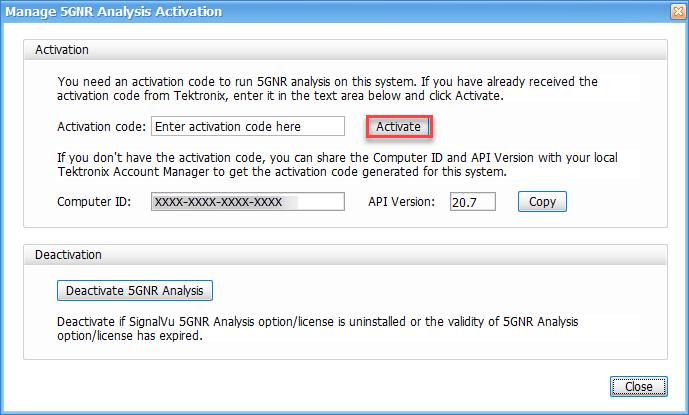
- If you have the activation code, under Activation, in the Activation code box, enter the activation code that you received from Tektronix, and then click the Activate.
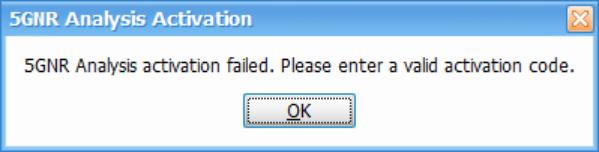
- If you receive the “5GNR Analysis activation failed. Please enter a valid activation code.” message, click OK, and then contact your local Tektronix support or Account Manager to get the correct activation code.
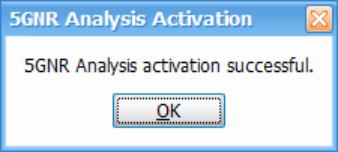
- If you receive the “5GNR Analysis activation successful” message, click OK.
- Close the Manage 5GNR Analysis Activation dialog box and restart the SignalVu application.
5GNR Analysis de-activation
- Start the SignalVu application.
- On the Tools menu, click Manage 5GNR Analysis Activation…. The Manage 5GNR Analysis Activation dialog box appears.
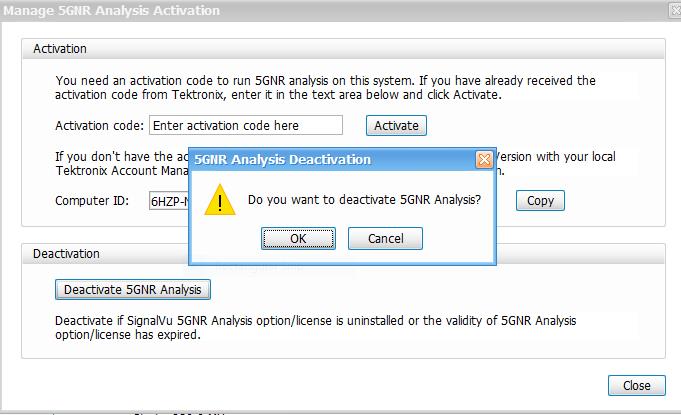
- Under Deactivation, click Deactivate 5GNR Analysis.
- Click OK and continue with 5GNR Analysis de-activation.
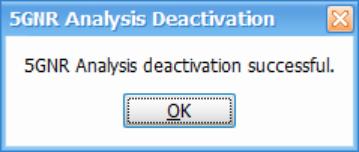
- If you receive the “5GNR Analysis deactivation successful” message, click OK, and then restart the SignalVu application.