

Why Accurate Resistor Testing Matters
The practical limitations of cost-effective device manufacture require that resistors be assigned a tolerance range by their manufacturers. As such, digital multimeters are often used to confirm whether a given resistor falls within its specified tolerance range. When testing many resistors, it is helpful to use an instrument that can automatically check if a resistor is within its tolerance specifications and record this data. This can be done through custom code development, but code creation is an expensive and time-consuming investment. KickStart Software offers an easy, no-code solution to testing resistor tolerances using its DMM App. In this application note, we will go over how to test resistor tolerances using a Keithley DMM6500 6.5-digit Digital Multimeter with KickStart Software and how to access and interpret the data.

Figure 1: Basic resistors typically used in circuit design.
What is Resistor Tolerance?
A resistor’s tolerance is the percentage of error in its nominal resistance, or the acceptable range of variance in a resistor’s measured resistance as compared to its nominal value. Tolerance is expressed as a plus or minus percentage measured under no load at a specific temperature, typically 25 degrees Celsius. Depending on the type of resistor, these tolerances can vary from as loose as ±20% to as tight as ±0.005%.
How can one test a resistor with a multimeter? The DMM6500 and KickStart Software can do simple passor-fail testing, as well as grading. Grading resistors is a common application that is done by monitoring multiple limits until the first failure.
Multimeter Setup: 2-Wire vs. 4-Wire Resistance Testing
To test a resistor with a multimeter, the KickStart DMM App allows you to remotely configure your DMM6500 settings and analyze test data from the convenience of your PC.
The settings of importance for this application include the measurement function, which you will set to either two-wire or four-wire resistance. Four-wire sense will help negate lead resistance in measurements and is more accurate, especially for measuring low-resistance devices.
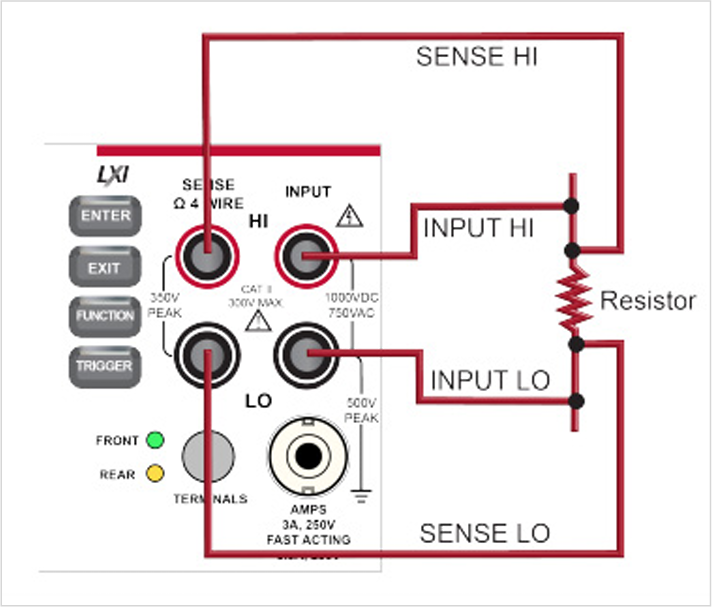
Figure 2: Front-panel connections for four-wire resistance measurements.
You will also want to ensure that Offset Compensation is enabled, as this setting will further improve resistance measurement accuracy by removing thermal offsets.
Additional settings such as Range, NPLC and Auto Zero can also be adjusted to further improve measurement accuracy.
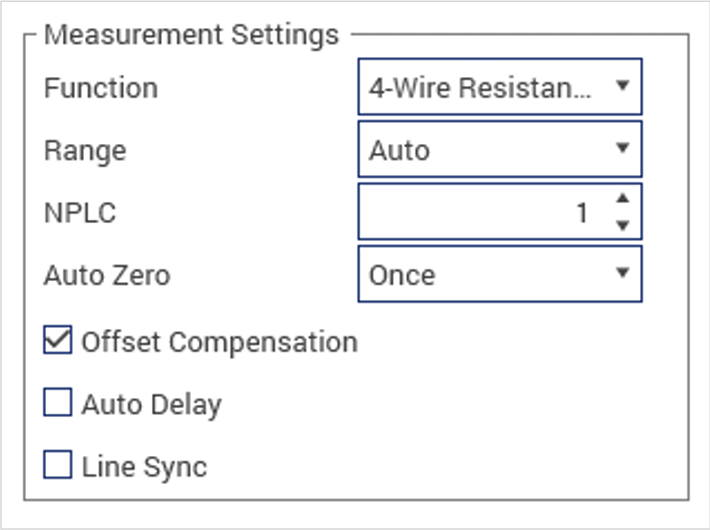
Figure 3: KickStart DMM App measurement settings.
The Acquistion settings include controls for Measure Delay and Measure Count. Measure Count should be set to the amount of resistors that will be tested.

Figure 4: KickStart DMM App Aquisition settings
How to Calculate Resistor Tolerance and Set Limits
To test resistor tolerance with KickStart, we will need to use the limits. Start by enabling Limit 1

Figure 5: KickStart DMM App Limit 1 settings enabled.
Next, we need to find the upper and lower limits of our target resistance measurement. We can do so with the following formulas
Upper Limit = R + RT
Lower Limit = R – RT
where R is the rated resistance of the resistor and T is the resistor’s tolerance range. For example, a 100 ohm resistor with a tolerance of ±20% would use the following limits
Upper Limit = 100 Ω + 100 Ω(20%) = 120 Ω
Lower Limit = 100 Ω – 100 Ω(20%) = 80 Ω
To grade resistors, you can also enable Limit 2. This will cause KickStart to test Limit 1 first, and, if the measurement falls within the limit, the software will then test that reading against Limit 2.

Figure 6: KickStart DMM App Limit 1 and Limit 2 settings enabled.
Hands-Free Resistor Testing with an External Trigger (Foot Pedal)
A convenient way to ensure ample time to connect each new resistor between readings is to use a generic momentary switch or foot pedal to manually trigger measurements. Switches that are normally open or normally closed will both work, as will a momentary switch of the kind used for musical keyboards.
The coaxial External_Trigger_IN on the back of the DMM6500 can be connected directly to a switch. A convenient way to connect a foot pedal is to use a pedal with a quarter-inch jack connector (such as is used for electric pianos) and a quarter-inch jack to coaxial adapter.

Figure 7: Foot Pedal connection for DMM6500.
The trigger can be configured within KickStart by setting the Trigger Mode to External:

Figure 8: KickStart DMM App Trigger settings.
Interpreting Test Results
Measurements that fall outside of the set limits and, thus, the resistor’s rated tolerance will appear highlighted in the KickStart Table tab. If Limit 1 fails, the Resistance value will be highlighted in yellow and will not be checked against Limit 2. If Limit 1 passes but Limit 2 fails, the Resistance value will be highlighted in orange. If both limits pass, the Resistance value will not be highlighted. This is how KickStart allows you to determine resistor grading at a glance.

Figure 9: Failed resistor measurements highlighted in the KickStart Table tab.
Conclusion
When you need to test a resistor using a multimeter, KickStart Software offers an easy, no-code solution using its DMM App. KickStart’s user-friendly interface makes the required settings easy to find and adjust as necessary for any test. You even have the choice of running a fullyautomated test or the ability to trigger measurements manually based on your specific test needs
The data visualization tools included with KickStart Software provide the convenience of having the resultant data directly at your fingertips. These visualization tools, such as the Table tab, offer a solution to resistor grading and limit testing by making failed measurements that fall outside of the desired limits highly visible, showing you which devices to bin at a glance
Visit Kickstart page to download and install Kickstart Software today.