

Contact us
Live Chat with Tek representatives. Available 6:00 AM - 4:30 PM
Call us at
Available 6:00 AM – 5:00 PM (PST) Business Days
Download
Download Manuals, Datasheets, Software and more:
Feedback
Accelerate Automation: Effortless Script Generation with TSP Toolkit
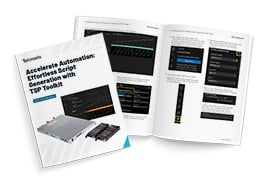
Accelerate Automation: Effortless Script Generation with TSP Toolkit
Adopting a new instrument or command set can be daunting and pose a unique set of challenges. Engineers, researchers, and system integrators alike must contend with a typically time-consuming learning curve when choosing to take on new technologies to meet their application needs.
TSP Toolkit alongside Tektronix’s new MP5000 Series Modular Precision Test System work together to lower the barrier to entry during the adoption phase. TSP Toolkit offers features exclusive to usage with the MP5000, such as Automated Script Generation!
The Automated TSP Script Generation feature can be used to reduce development time and effort for current vs. voltage (I-V) tests on a variety of devices, such as multi- terminal semiconductor components, solar cells, and more. This feature allows you to configure each MP5000 Series SMU or PSU module for a variety of DC bias, step, and sweep sourcing operations and automatically generate a TSP™ script to leverage in your test workflow.
I-V Characterization Using the MP5000
I-V characterization refers to the process of applying a series of voltages or currents to a device while measuring the current and voltage. Plotting the source against what is being measured results in an I-V curve. I-V curves are used to validate design, identify faults, optimize performance, and understand how devices such as solar cells, SiC devices, and integrated circuits behave under different conditions.
The MP5000 Series Modular Precision Test System is designed to adapt and scale alongside projects from the validation phase all the way through production. The ability to mix and match modules in a single mainframe allows you to customize your test setup and optimize performance per channel.
In terms of I-V characterization applications, this means that PSU modules can be used for biasing while SMU modules can focus on sweeping, optimizing cost per channel.
How TSP Toolkit Saves Time
TSP Toolkit is a Microsoft Visual Studio Code extension and Tektronix’s dedicated TSP scripting environment which boasts syntax highlighting, TSP command autocompletion, and TSP command hover help with usage examples. The extension comes fully equipped with an instrument pane for connecting to instruments and upgrading firmware, a terminal for communicating with instrumentsdirectly, and a full-fledged TSP debugger complete with breakpoints, variable pane, and watch pane for tracking the values stored in commands and expressions. Automated Script Generation is the latest feature, designed to help you quickly get up and running with your MP5000 for I-V characterization applications.
To set up a workspace within TSP Toolkit:
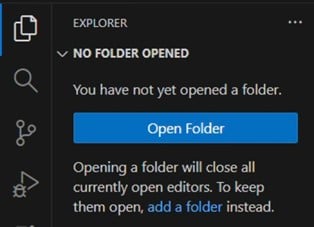
1. Navigate to the VS Code Explorer tab on the toolbar:

2. Open a folder to use as your workspace. It is recommended to use a folder that is located on your PC’s local drive, as certain cloud locations such as Microsoft OneDrive may prevent TSP Toolkit from generating a script using the Automated Script Generation feature.
To access the Automated Script Generation feature:
1. Click the TSP Toolkit icon on the toolbar to access the TSP Toolkit Instruments, System Configurations, and Script Generation Panes:

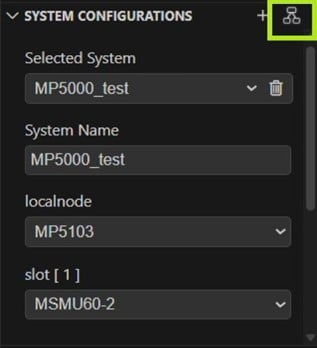
2. Connect to your MP5000 Series using the Instruments Pane, then click on the tree icon in the System Configurations Pane below to fetch the module information:
3. Next, go to the Script Generation Pane below the System Configurations Pane and click the “+” to open the Automated Script Generation UI:
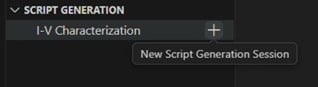
4. Creating a new Script Generation Session will prompt you to enter a name. This will become the name of the generated script as well as the name of Script Generation project within the Script Generation Pane:

5. Once you have named your Script Generation project, the user interface will appear:
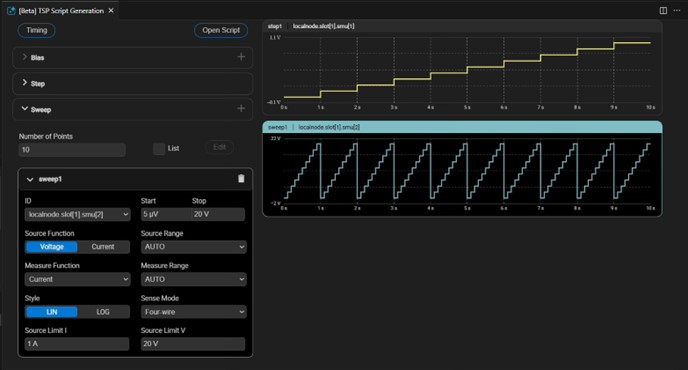
Figure 1: The TSP Toolkit Automated Script Generation User Interface
The GUI can be used to configure the source/measure behavior of a single MP5000 mainframe equipped with up to 3 modules. Each configured channel also has a corresponding preview waveform, which allows you to visually confirm the sourcing behavior of the channel prior to generating the script.
With the interface, each module channel can be individually set as a Bias, Stepper, or Sweeper.
Bias Channels
A Bias refers to a channel which is sourcing a single constant voltage or current. Biasing is often used to establish the proper operating conditions for certain electrical components, such as transistors.
You can have as many bias channels as you have available within your MP5000 mainframe.
To configure a channel as a Bias, start by clicking the “+” icon to the right of the “Bias” menu:

Expand the Bias settings. You can set a channel to bias by selecting which channel to act as a bias in the “ID” dropdown menu:
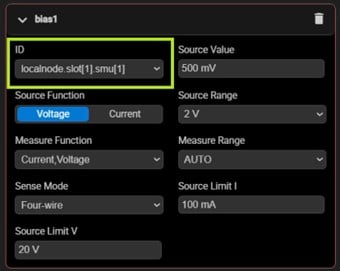
From here, other parameters such as the source function, source value, ranges, limits, and sense mode can also be adjusted.
Stepper Channels
A Stepper channel refers to a channel that performs the “outside sweep” in a nested sweep scenario. For each “step” in the stepper sweep, a different channel can perform an entire sweep. Essentially, a stepper/sweeper configuration is a sweep of sweeps, where the stepper channel applies a bias that changes levels with each step while another channel applies a sweep.
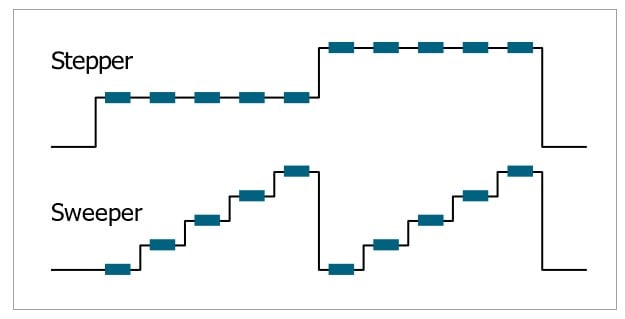
Figure 2: A Diagram Showing a Typical 2 Channel Stepper/Sweeper Configuration
For this reason, only one Stepper channel can exist in an Automated Script Generation configuration.
To configure a channel as a Stepper, start by clicking the “+” icon to the right of the “Step” menu:

Expand the Step settings. Select a channel to act as a stepper by selecting the channel in the “ID” dropdown menu:
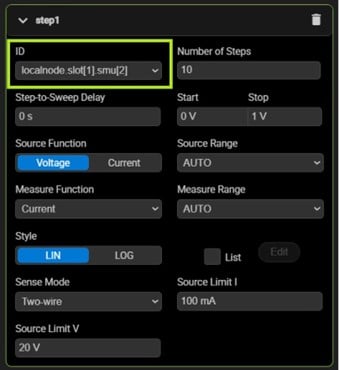
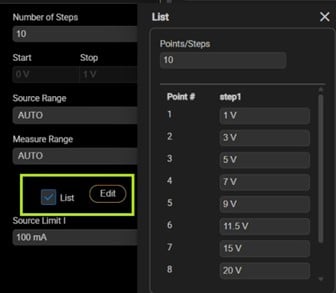
From here, other parameters such as the number of steps, source function, source value, ranges, limits, etc. can also be adjusted. Of note is the “List” checkbox. When checked, the “Edit” button next to the List checkbox allows you to set a custom source value for each step.
Sweeper Channels
A sweep is a source that continuously changes from one source value to another linearly or logarithmically within a specified number of points. A sweep is used to test how a device behaves in response to various source levels over time.
A Sweeper channel also refers to a channel that performs an “inner sweep” in a nested sweep scenario. For each “step” in the stepper sweep, a sweeper channel performs an entire sweep.
You can have as many sweeper channels as you have available within your MP5000 mainframe.
To configure a channel as a Sweeper, start by clicking the “+” icon to the right of the “Sweep” menu:

Expand the Sweep settings. Set a channel to act as a sweeper by selecting the channel in the “ID” dropdown menu:
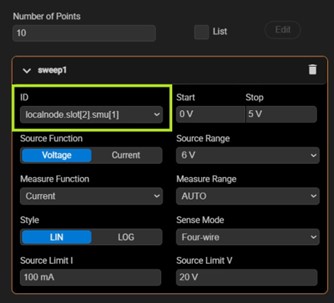
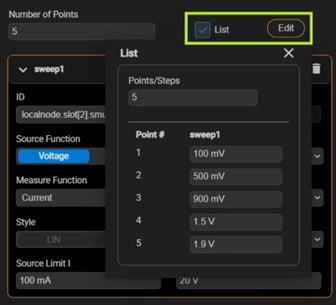
From here, other parameters such as the number of sweep points, source function, source value, ranges, limits, etc. can also be adjusted. Of note is the “List” checkbox. When checked, by clicking the “Edit” button next to the List checkbox, you can set a custom source value for each sweep point, resulting in a custom list sweep.
Verifying Behavior with Previews
The preview waveforms on the righthand side of the screen are a great resource for visualizing the source behavior and timing of the I-V characterization prior to generating the script. Each configured channel has its own preview waveform that corresponds to it with matching highlight coloration. The previews automatically update whenever parameters are edited.
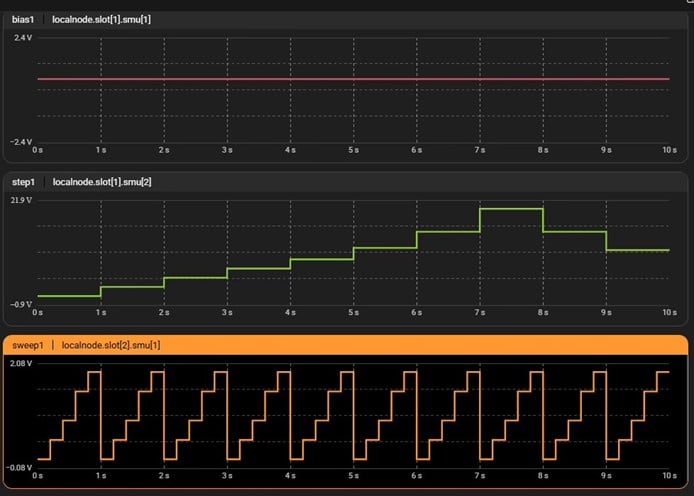
Figure 3: The TSP Toolkit Automated Script Generation Source Previews
Generating the Script
Once you are happy with the configuration, click the “Open Script” button to view the generated script. This script can be executed directly in the interface or used in other scripts as described in the section on Using the Generated Script.
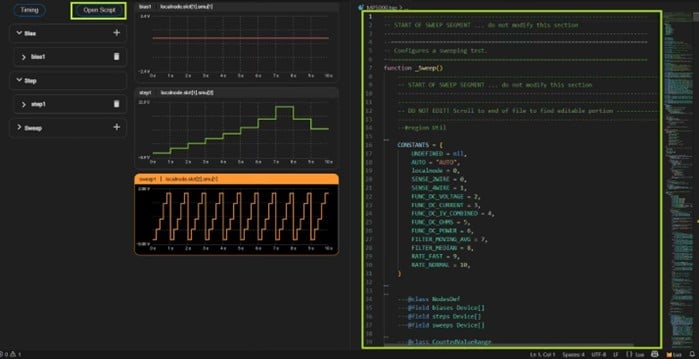
Figure 4: The TSP Toolkit Automated Script Generation UI with Generated TSP Script Open in the Editor Window
MOSFET Family of Curves Example
I-V characterization is a common test and one of the best ways to ensure that a MOSFET is functioning properly and meets specifications. A MOSFET family of curves allows for the comparison of the IV characterization at the drain terminal when the gate terminal is exposed to a series of voltages or currents. The TSP Toolkit Script Generation feature simplifies test configuration and ensures quick, accurate results.
To generate a MOSFET family of curves using TSP Toolkit, all that is required is a single 2 channel SMU module installed in slot 1 of an MP5103 mainframe. A MOSFET is then connected to the SMU using a test fixture and triaxial cables as shown in Figure 5.
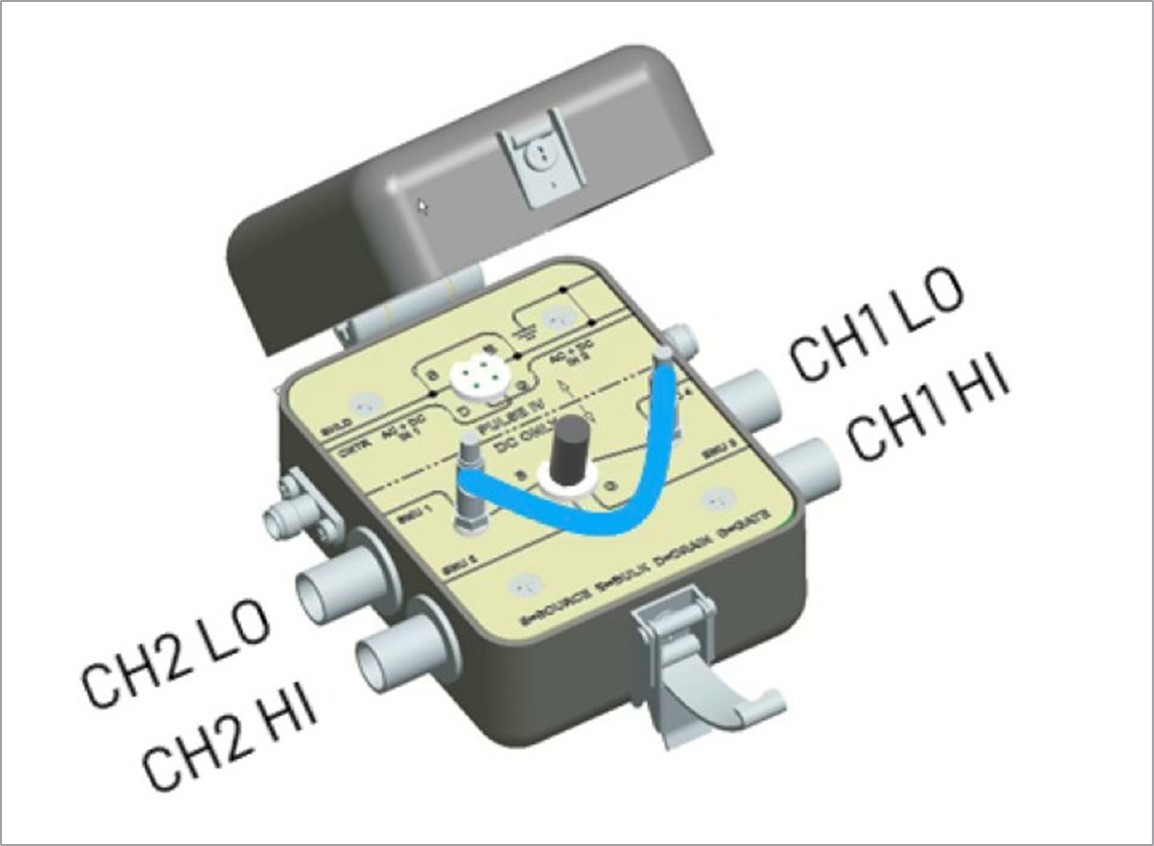
Figure 5: An SD210 N-Channel MOSFET installed in an 8101-PIV Test Fixture connected to an MP5000 SMU Module via Triaxial Cables.
Connect to the MP5000 mainframe with TSP Toolkit and create a new script generation session using the Script Generation Pane. Name the new Script Generation session “Family of Curves”.
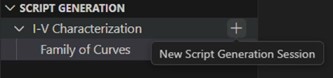
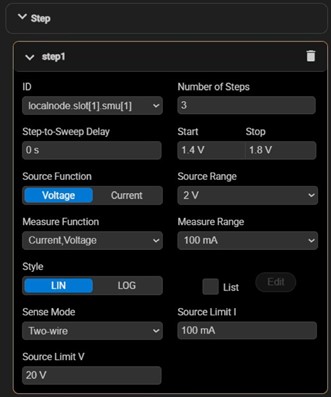
Expand the “Step” settings and assign slot[1].smu[1] (the gate channel) as step1 using the ID dropdown. Then input the parameters as shown:
Expand the “Sweep” settings and assign slot[1].smu[2] (the drain channel) as sweep1 using the ID dropdown. Then input the parameters as shown:
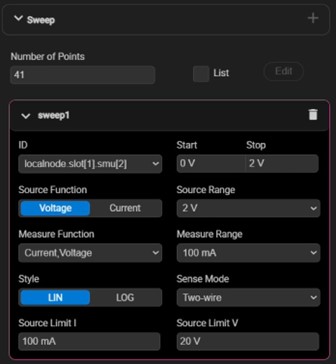
Click the “Open Script” button to view the generated script in a new editor window.
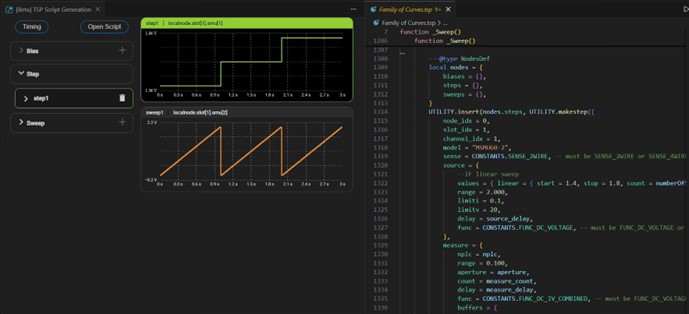
Figure 6: The TSP Toolkit Automated Script Generation UI Configured for a MOSFET Family of Curves Test Alongside the Generated Script.
Using the Generated Script
Once the script has been generated, you have the option to continue using it within TSP Toolkit or you can make some changes to the generated script and call it from a Python or other such environments.
Running the Script within TSP Toolkit
The simplest way to immediately get up and running with an MP5000 and a generated script is to run the script with TSP Toolkit. To run the script within TSP Toolkit, simply right click within the script editor window and select “Send Script to Terminal.”
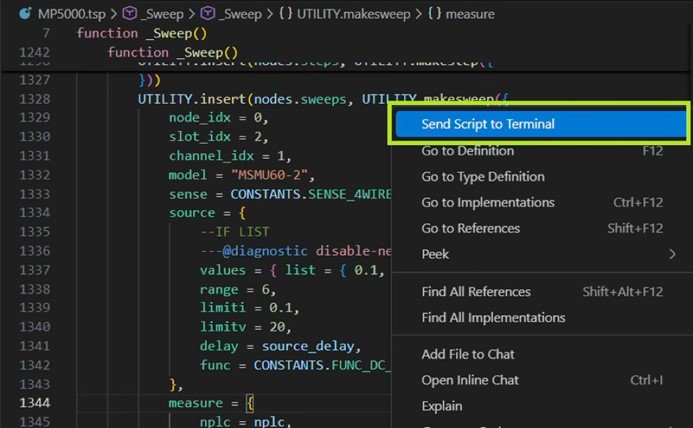
Figure 7: The Generated TSP Script Open in the Editor Window with Active Context Menu Highlighting the “Send Script to Terminal” Command
This will send the script to the terminal to run on the instrument and allow the resulting data to be returned from the instrument to the very same terminal in comma separated format:
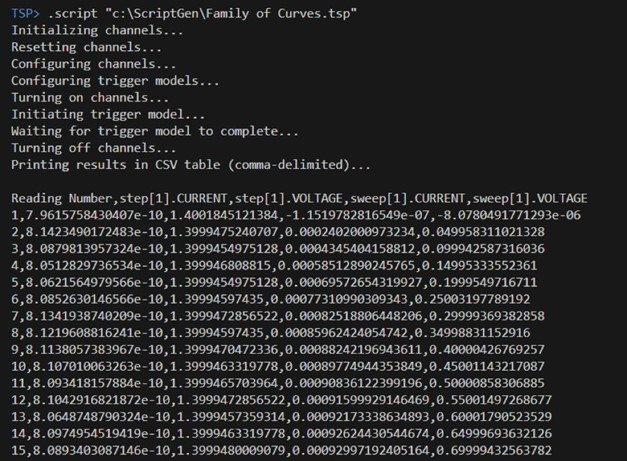
Figure 8: The Resulting Data from the MOSFET Family of Curves Test Being Output to the TSP Toolkit Terminal
You can copy/paste this data into notepad and name the file with the *.csv extension so that it can be opened in Excel for graphing.
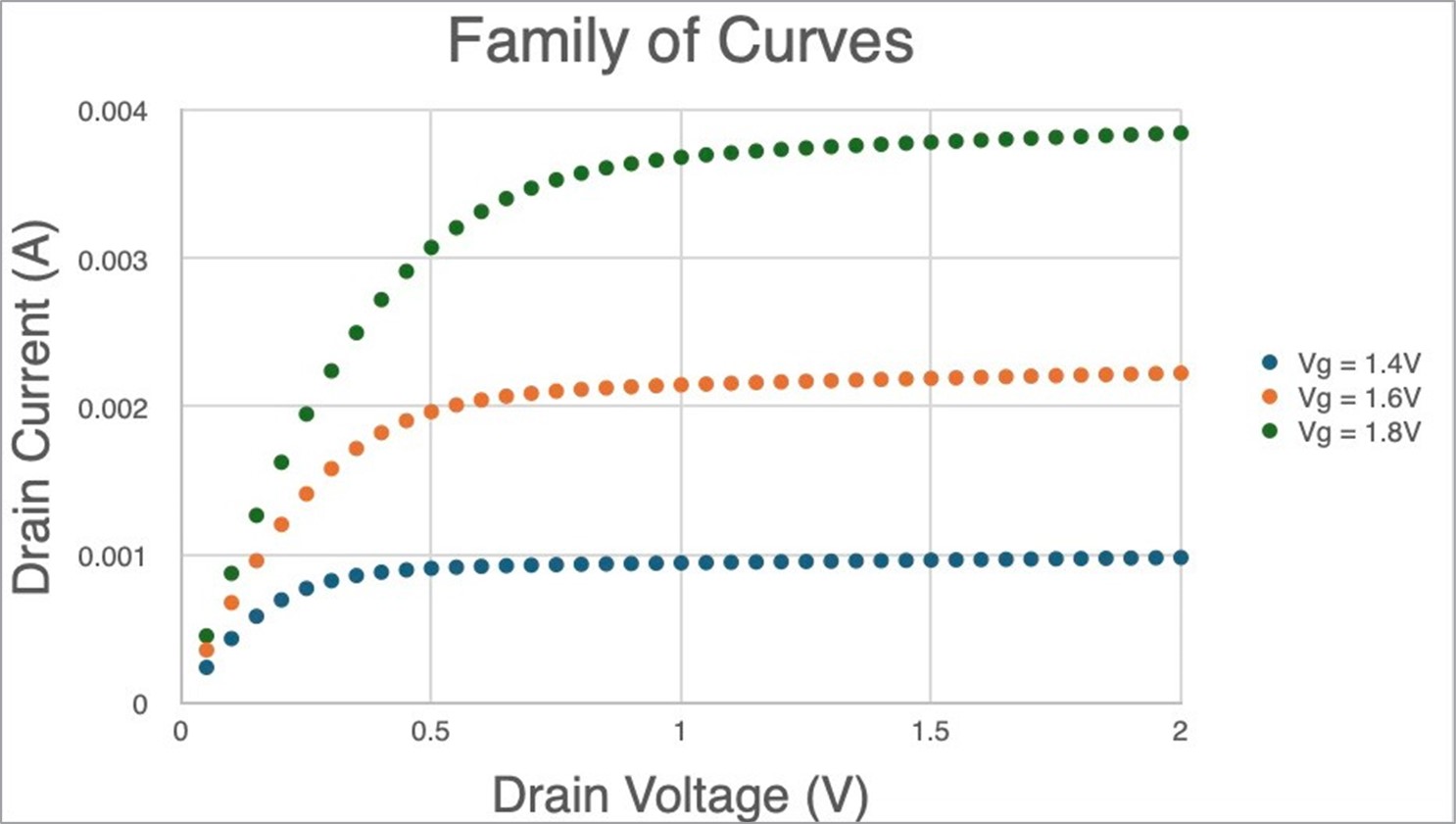
Figure 9: The Resulting Data from the MOSFET Family of Curves Test Plotted in Microsoft Excel.
Running the Script with Python
You can use Python or another programming language to call TSP scripts as though they were functions. This capability means that you can leverage partial or fully developed code in another programming language and avoid completely refactoring your code base, while taking advantage of improved throughput, synchronization and triggering with TSP.
Before running the generated TSP script using Python, open the script with TSP Toolkit and comment out the _ Sweep() function call at the very bottom of the file, as shown on line 1421 in Figure 10. This will prevent the script from running automatically when it is loaded onto the instrument.
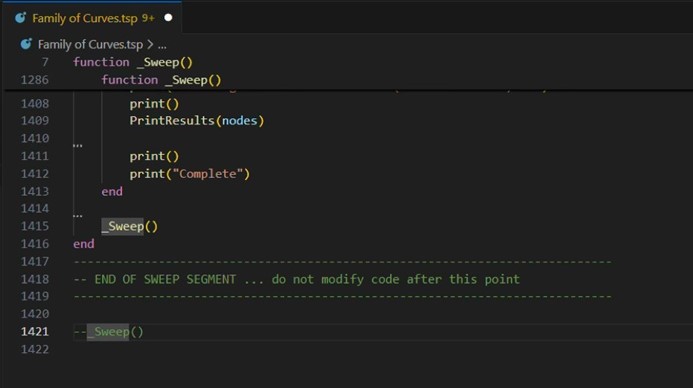
Figure 10: The Generated TSP Script with the main _Sweep() Function Commented Out.
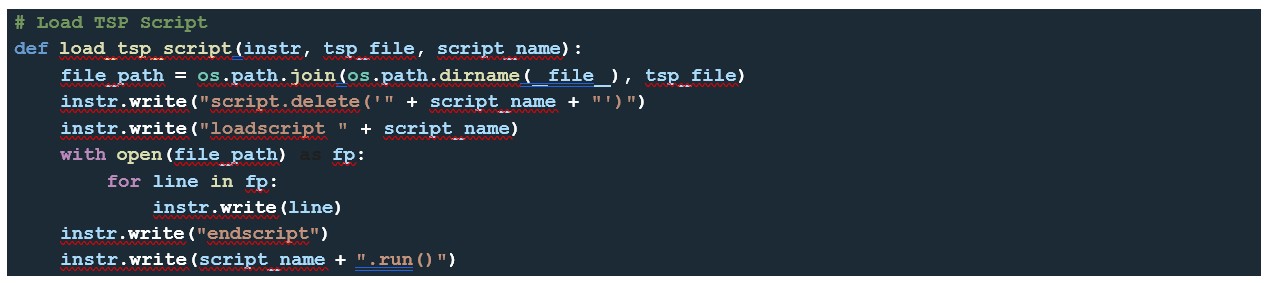
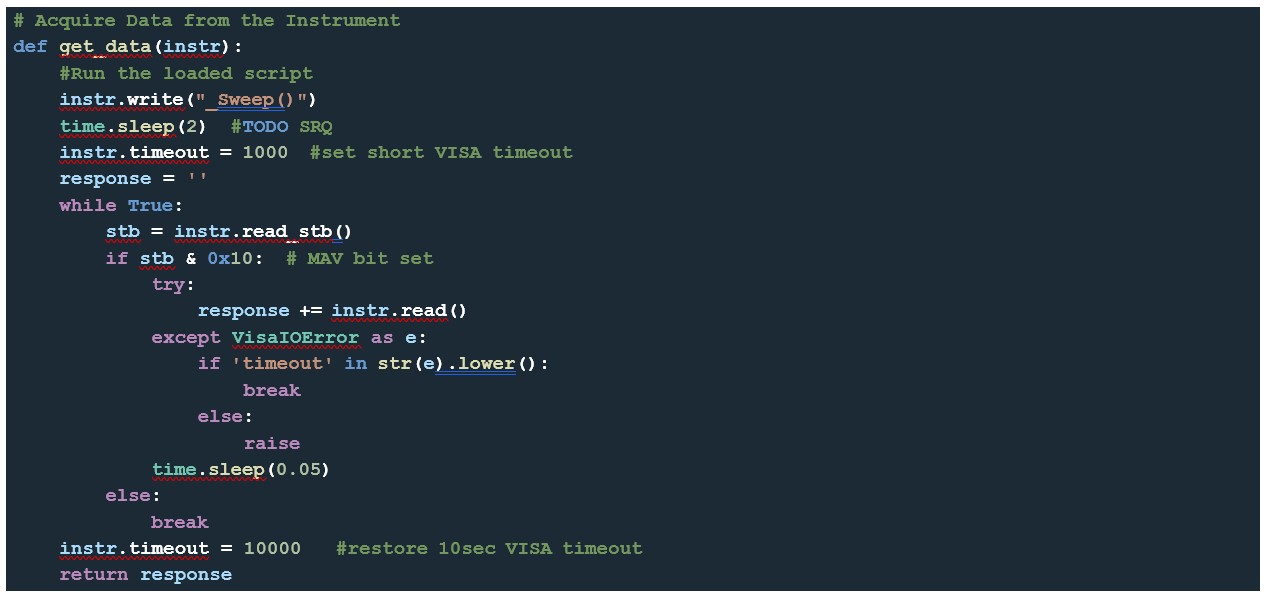
Running the generated TSP script with Python can be done using three simple functions that utilize the following Python libraries:

The first function loads a TSP script to the instrument’s memory:
The second function runs the TSP script and collects the data from the instrument:
The main function establishes the instrument connection and calls the load _ tsp _ script() and get _ data() functions:
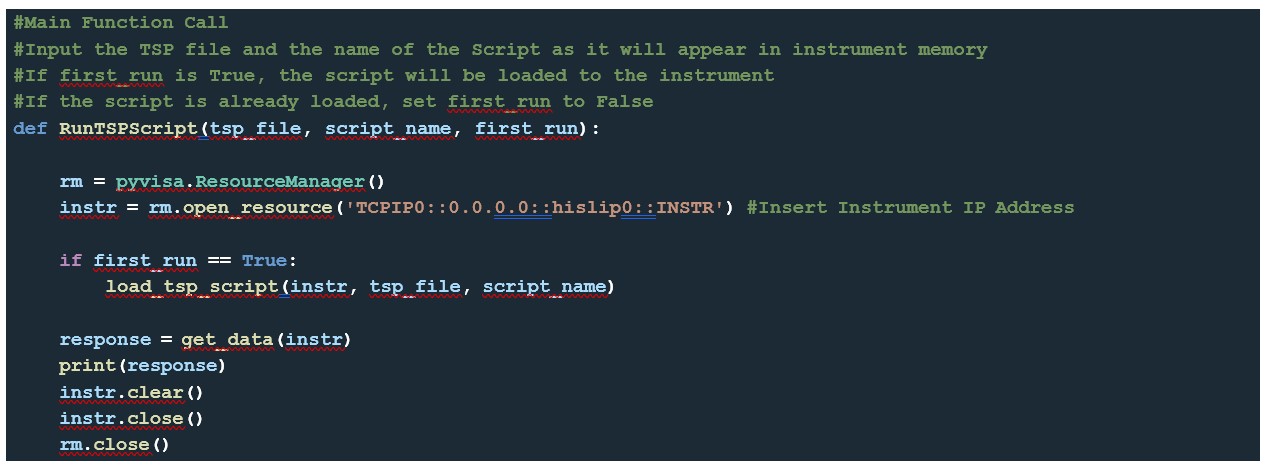
Running the script that was generated in the previous section MOSFET Family of Curves Example would look like this:

For more information on running TSP scripts from Python, see Getting Started with the MP5000 Series Modular Precision Test System and Test Automation.
Conclusion
The Automated TSP Script Generation feature within TSP Toolkit significantly streamlines the process of configuring and running IV characterization tests on the MP5000 Series Modular Precision Test System. By reducing manual scripting effort and providing intuitive configuration tools with real-time previews, engineers can accelerate test development, minimize errors, and improve productivity. This ensures that users can quickly adapt to new instruments and focus on analyzing results rather than writing code. Leveraging TSP Toolkit’s capabilities ultimately shortens the learning curve and enhances efficiency across validation and production environments.